Perform Audit
You will always be working in Perform mode when conducting audits, which may involve making changes, adding, modifying, closing, and reopening elements.
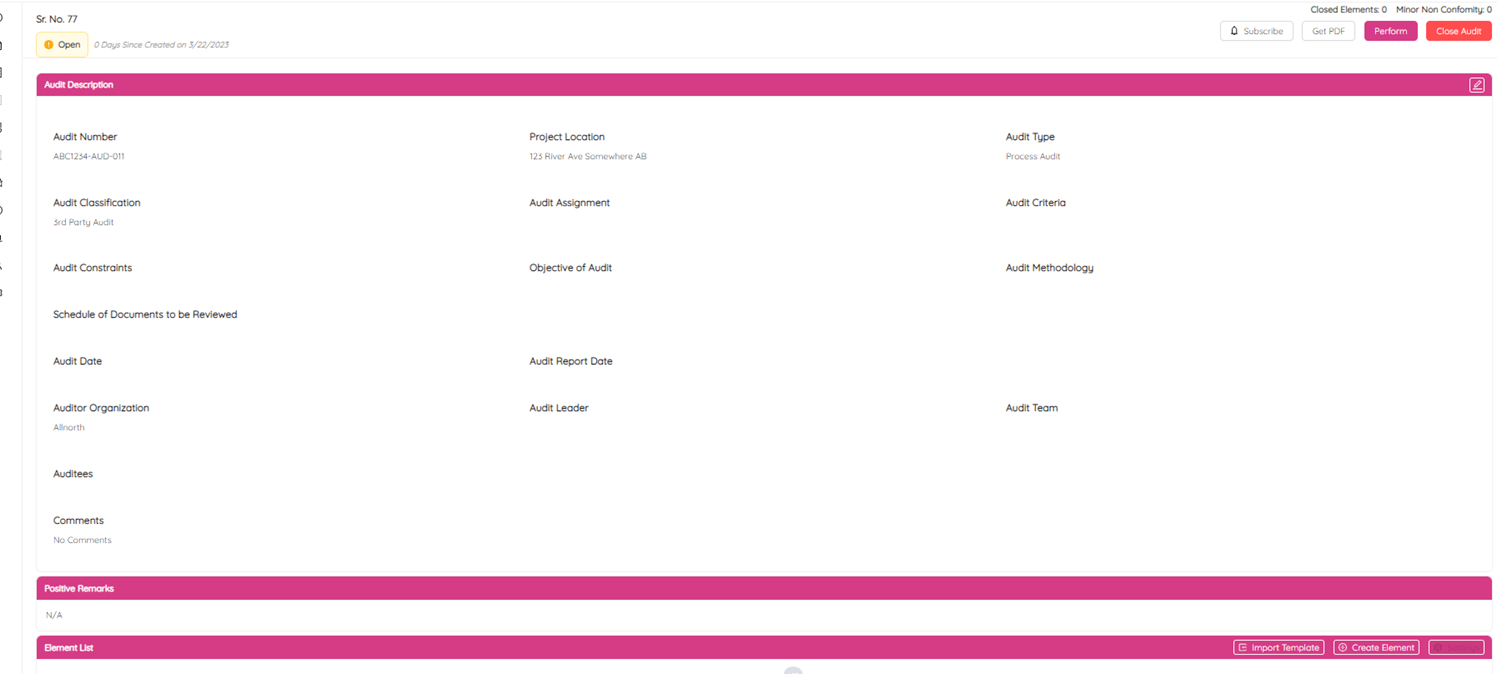
Click on the Perform button to perform the audit. Similarly, click on the Complete button to exit Perform mode. You can always get back into perform mode as soon as you need.
Positive Remarks are notes or comments that you want to record for positive observations during the audit. These could be general or something specific and in limited words. Positive remarks can be typed in the Positive Remarks section any time when you are in Perform mode.

An example of a positive remark can be: "Audit went well. Records are well-maintained, organized & readily available. Participants were cooperative, supportive, and motivated to take action on the opportunity of improvements and recommendations".
Create Element List (Audit Questions)
In this section, you can create a list of elements (Audit Questions) for the audit. Typically, you go through audit criteria, scope and general questionnaire and prepare an audit list before interviewing the auditee. You will be able to add and edit elements anytime (before, during and after the audit is completed).
You can import a template, create an element, or combine both to generate an element list. This is the list of questions you will be using for the audit and asking the auditee.
Import Template to Element List
There are various workspace templates that you can upload as audit elements in the audit list. These templates are based on the company's standard practices and general criteria for the specified workspace. You have the option to upload one or more templates to create an element list. After generating the list, you can eliminate any elements that are not relevant for this particular audit.
- Click on the Import Template button.
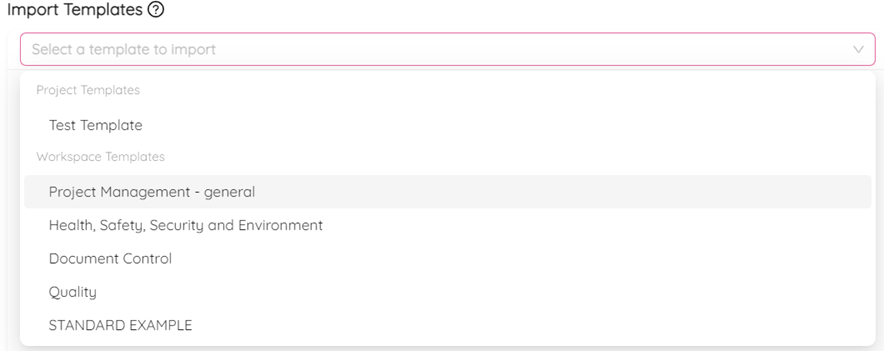
- Click on the Select a template to import field to see templates that are available.
- Pick the template you want to add to the list.
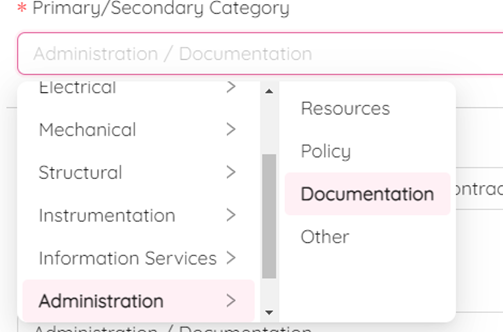
You will see a List of Questions with Associated Category and Element Reference. You can select appropriate Primary and Secondary category by clicking on drop down arrow.
You can add one or a few Element References separeted by coma for each question or remove any element reference.
-
Click on
 icon to remove any question from the element list.
 -
Once you are satisfied with the questions, then click on the Add Into Audit button to add them to the audit list.
-
Click on the Done button to import selected questions in the Element List.
Similarly, you can import multiple workplace templates to generate an audit list.
Create a New Element to Add to the List
To create manually a new element and add it to the list follow the next steps:
- Click on the Create Element button.
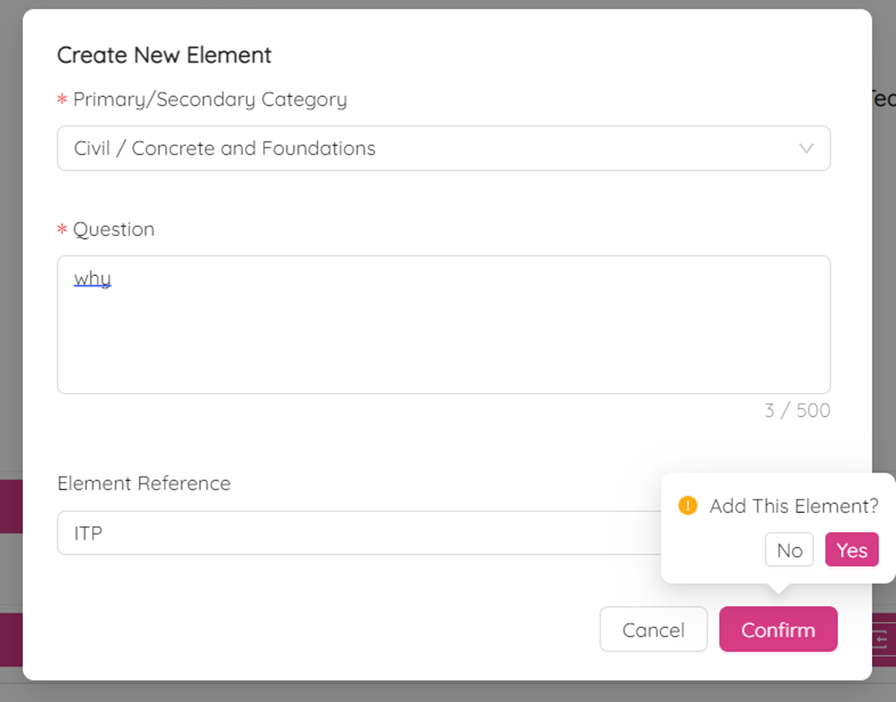
- Select a primary and a secondary category in Select a category field of the Create New Element dialog box.
- Specify a question in the Enter Question Here field.
- Click on the Add Reference to add an element reference.
- Click on the Confirm button to add the question to the list.
- Conirm one more time by clicking on Yes.
The element will be added to the bottom of the list.
You can rearrange the list elements by clicking on the Settings button. You will see the following box.
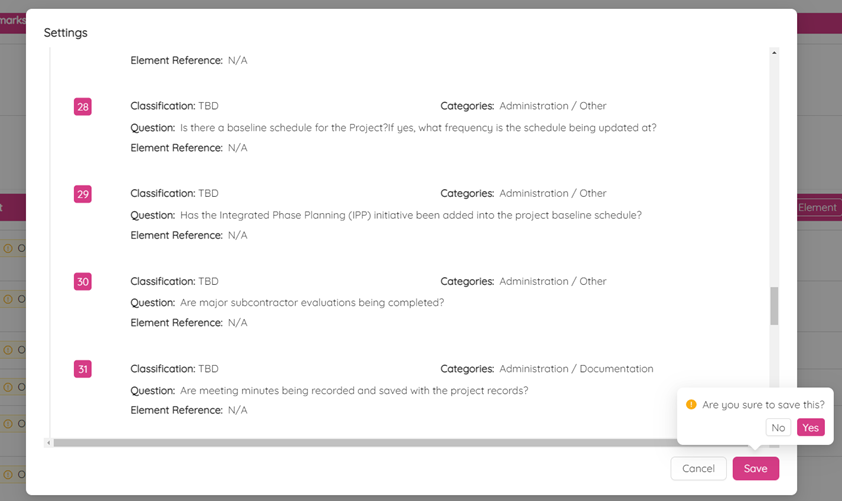
Simply change the questions' order by dragging elements up and down. Don't forget to confirm by clicking Save and Yes.